 Business License
How to enable hdmi in windows 10
HDMI (High-Definition Multimedia Interface) is a popular audio and video interface that allows users to connect their devices, such as laptops and TVs, to each other. If you have a Windows 10 device with an HDMI port and you want to use it to connect to a TV or other display, you will need to enable HDMI in Windows 10 first.
Here is a step-by-step guide on how to enable HDMI in Windows 10:
Plug in the HDMI cable to both your Windows 10 device and the TV or display.
Turn on the TV or display and set it to the correct input source. This will usually be done by pressing the "Input" or "Source" button on your TV's remote control and selecting the correct HDMI input.
On your Windows 10 device, right-click on the desktop and select "Display Settings" from the menu.
In the "Display Settings" window, click on the "Detect" button to detect the connected display.
If the display is detected, it will appear in the list of displays. Click on the display and then click the "Identify" button to identify which display is which.
Once you have identified the display, you can choose how you want to use it. You can either extend the desktop to the display, which means that you can use both displays as separate workspaces, or you can set the display as the main display, which means that everything will be displayed on that display. To do this, click on the "Multiple displays" drop-down menu and select the desired option.
If you want to change the resolution or orientation of the display, you can do so by clicking on the "Resolution" drop-down menu and selecting the desired option.
When you are done, click on the "Apply" button to save the changes.
That's it! You have successfully enabled HDMI in Windows 10 and can now use your TV or display as an extended desktop or main display.
It's worth noting that the exact steps may vary slightly depending on your specific Windows 10 device and the TV or display that you are using. If you are having trouble connecting the devices or enabling HDMI, you may want to consult the user manual or online resources for your specific device.
In addition to enabling HDMI in Windows 10, you may also want to make sure that your device is capable of outputting audio over HDMI. Some devices may require you to change the audio output settings in order to hear sound on the TV or display. To do this, right-click on the speaker icon in the taskbar and select "Sounds" from the menu. In the "Sounds" window, click on the "Playback" tab and select the HDMI output device from the list. Click "Set Default" to set the HDMI output as the default audio device.
HDMI is a convenient and easy-to-use interface for connecting devices, and by following the steps above, you can easily enable HDMI in Windows 10 and start using your TV or display as an extended desktop or main display.
Recently Posted
-
Do you offer guarantee for the products?
June 26, 2023Yes, we can offer 1 year guarantee for the goods.Read More -
Can I get a sample to check the quality of product?
June 26, 2023Yes. We can send you samples to check the quality within 3-5days.Read More -
How fast can i get the quotation?
June 26, 2023We usually quote within 24 hours after we get your inquiry. If you are very urgent to get the price,please call us or tell us in your email so that we will regard your inquiry as priority.Read More -
What is the difference between HDMI2.0 and 2.1
June 26, 2023Bandwidth: 2.0 is 18Gbps bandwidth, 2.1 is 48Gbps bandwidth; resolution: 2.0 supports up to 4K@60Hz, 2.1 supports 8K@60Hz and 4K@120hz; variable refresh rate: HDMI2.1 support, 2.0 does not support.HDMI means High Definition Multimedia Interface. This standard was initiated by 7 companies including Sony, Hitachi, Panasonic, Philips, Toshiba, Siliconimage, Thomson (RCA) in April 2002, and it unifies and simplifies users. TerminRead More

Contact Us
Recommended Products
-
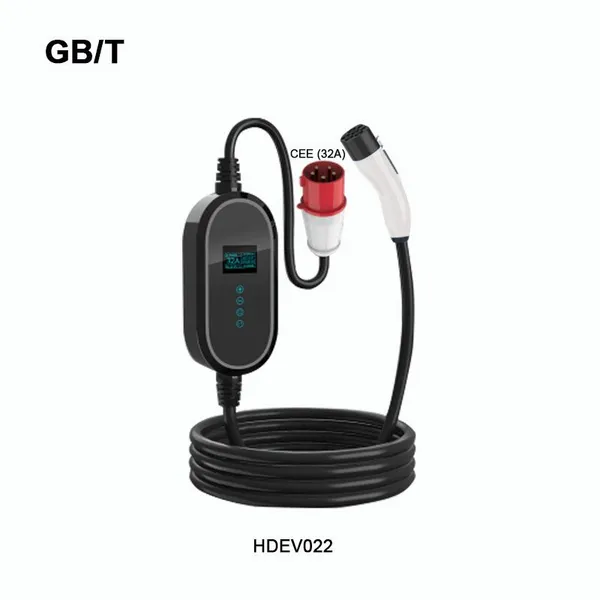
 Portable EV Charger CEE(32A) To GB/T 16A 32A Home Ev Charging HDEV022NegotiableMOQ: 100 Sets
 -
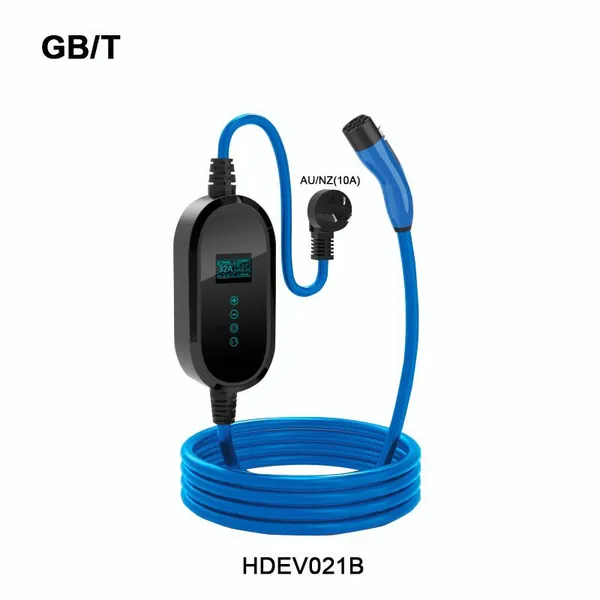
Portable Electric Car Charger Schuko(16A) To GB/T Home Charger for New Energy Vehicle 7kw Charger HDEV021NegotiableMOQ: 100 Sets
-
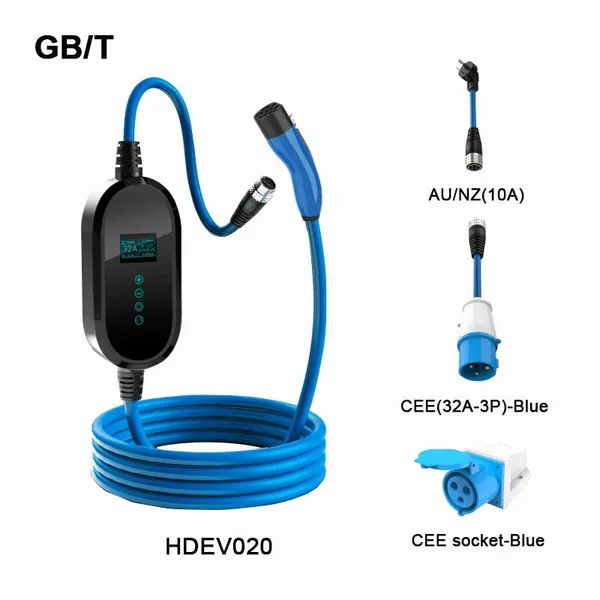
Portable Ev Charger With Intelligent Recognition Intelligent Charging GB/T IEC62196 10A 16A 32A Home Charger HDEV020NegotiableMOQ: 100 Sets
-
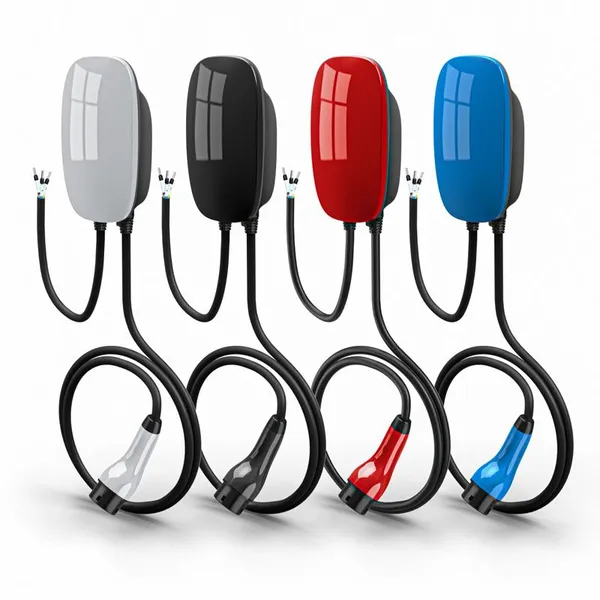
EV Wall Charger Type2 Connector(16A/30A/32A/50A) Almost Compatible With All EVS HD5003NegotiableMOQ: 100 Sets
-
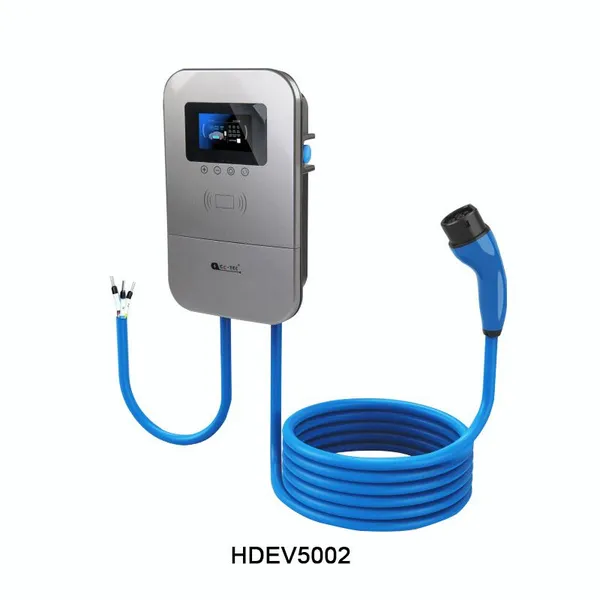
Electric Vehicle Wall Charger(16A,32A,3.5KW,11KW) Type 2 EV Charger HDEV5002NegotiableMOQ: 100 Sets
-
High Speed Signal Transmission 4k HDMI Male to HDMI Male Multimedia Cable HD1046NegotiableMOQ: 50 Pieces
-
High Speed HDMI To HDMI TV HDMI Cable for DVD Player Cable HD1051NegotiableMOQ: 50 Pieces
-
Hdmi To Hdmi Cable 1.4v 2.0v 4K 90 Degrees Right Angle USB Type for ComputerNegotiableMOQ: 50 Pieces
-
90 Degree Left Angle Hdmi To Hdmi Cable 1.4v 2.0v 4K Hdmi Cable for Camera HD1065NegotiableMOQ: 50 Pieces
-
Best Hdmi Cable 4k Factory Good Price HDMI 19 P A/M to A/M -With LED Blue LightNegotiableMOQ: 50 Pieces
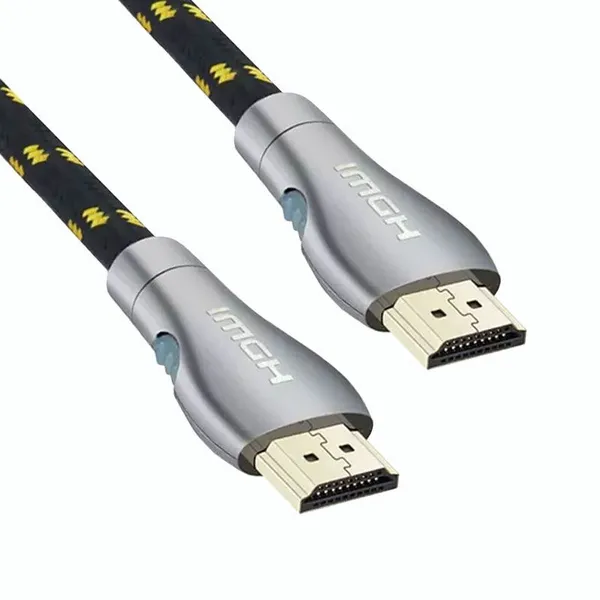
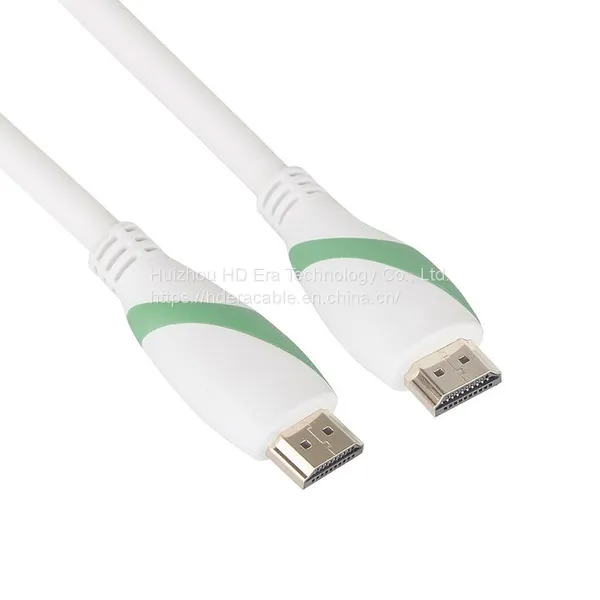
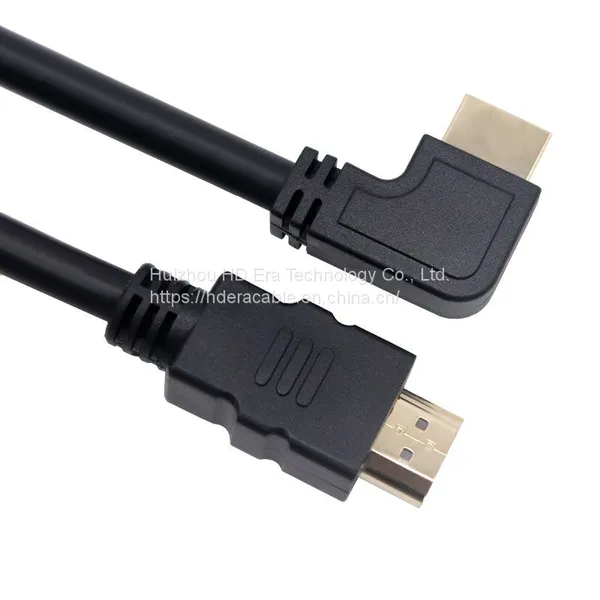
-
1.4v,2.0v,2.1v 4K 8k HDMI Cables for Camera, Computer Best Factory With Good PriceNegotiableMOQ: 50 Pieces
-
HD1004 Video Cables 3D 4K 60hz 1080p 1m Hdmi 4K Applied to Multimedia Audio With Custom LogoNegotiableMOQ: 50 Pieces
-
8K HDMI Cable HD1025NegotiableMOQ: 50 Pieces
-
New Type C USB 4k HDMI Male to HDMI Cable for Mac TV Projection HD1046NegotiableMOQ: 50 Pieces
-
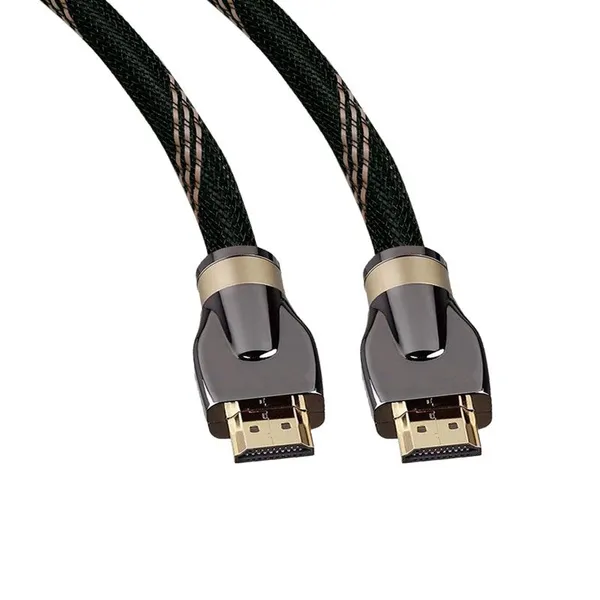
Wholesale Male to Male Gold Plated High Speed HDMI Cable OEM Support HD1004NegotiableMOQ: 50 Pieces
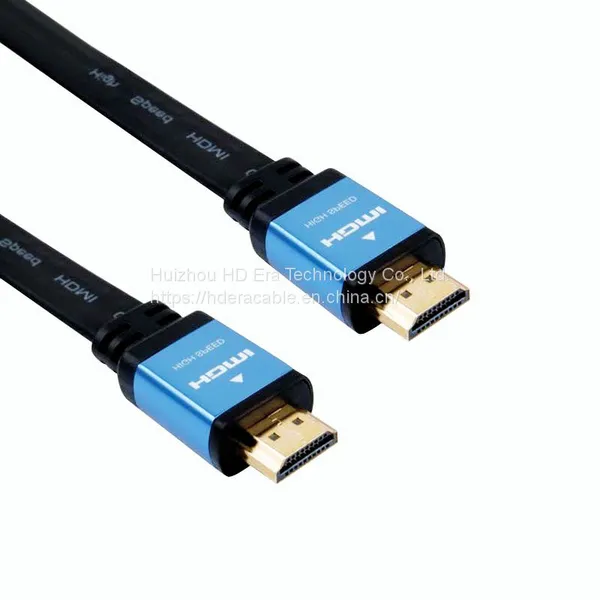
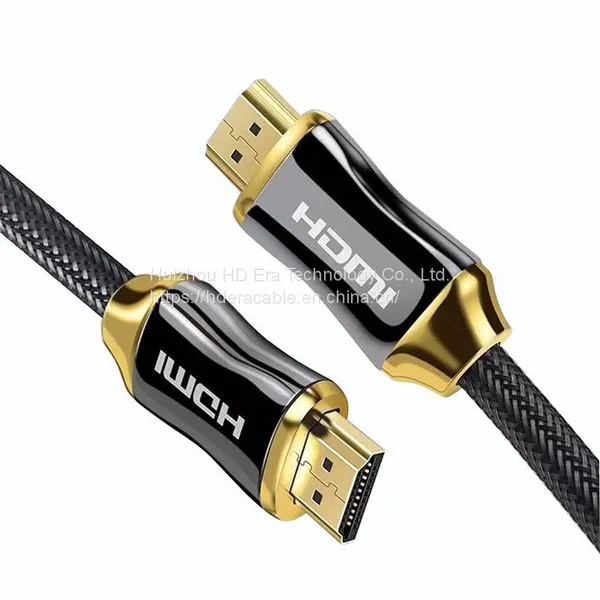
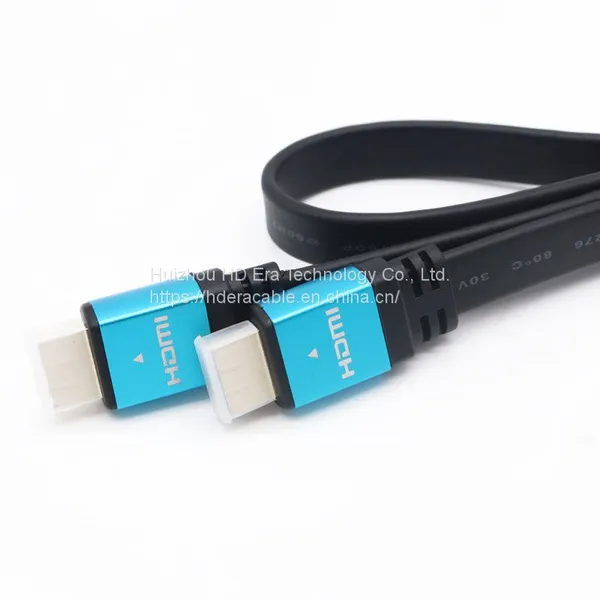
-
HD1046 China Wholesale Cable 4K HDMI 2.1 Cable With Best PriceNegotiableMOQ: 50 Pieces
-
Wholesale Male to Male Gold Plated High Speed HDMI Cable OEM Support HD1035NegotiableMOQ: 50 Pieces
-
HD1046 Type C Cable Type-c to HDMI Cable for Connect Phone to TV HDTV With LED Blue LightNegotiableMOQ: 50 Pieces
-
Ultra-HD Active Optical Fiber Optic Cable HDMI Double for DVD Player HD1051NegotiableMOQ: 50 Pieces
-
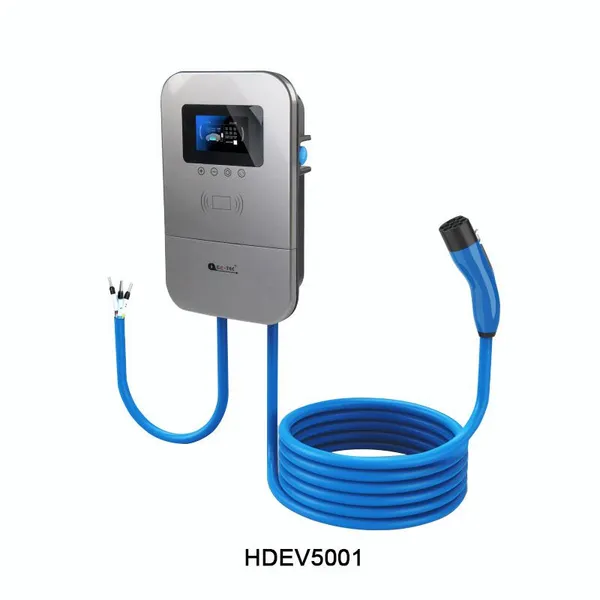
Ev Wall Charger (16A,30A,32A,50A )GB/T For Home Charger HDEV5001NegotiableMOQ: 100 Sets